Chrome bookmarks were built for 2008.
Your workflow isn't.
You have 200 saved links and can't find the one you need. You remember saving it. You just can't remember where. Chrome wasn't built to solve that problem - Clibben was.
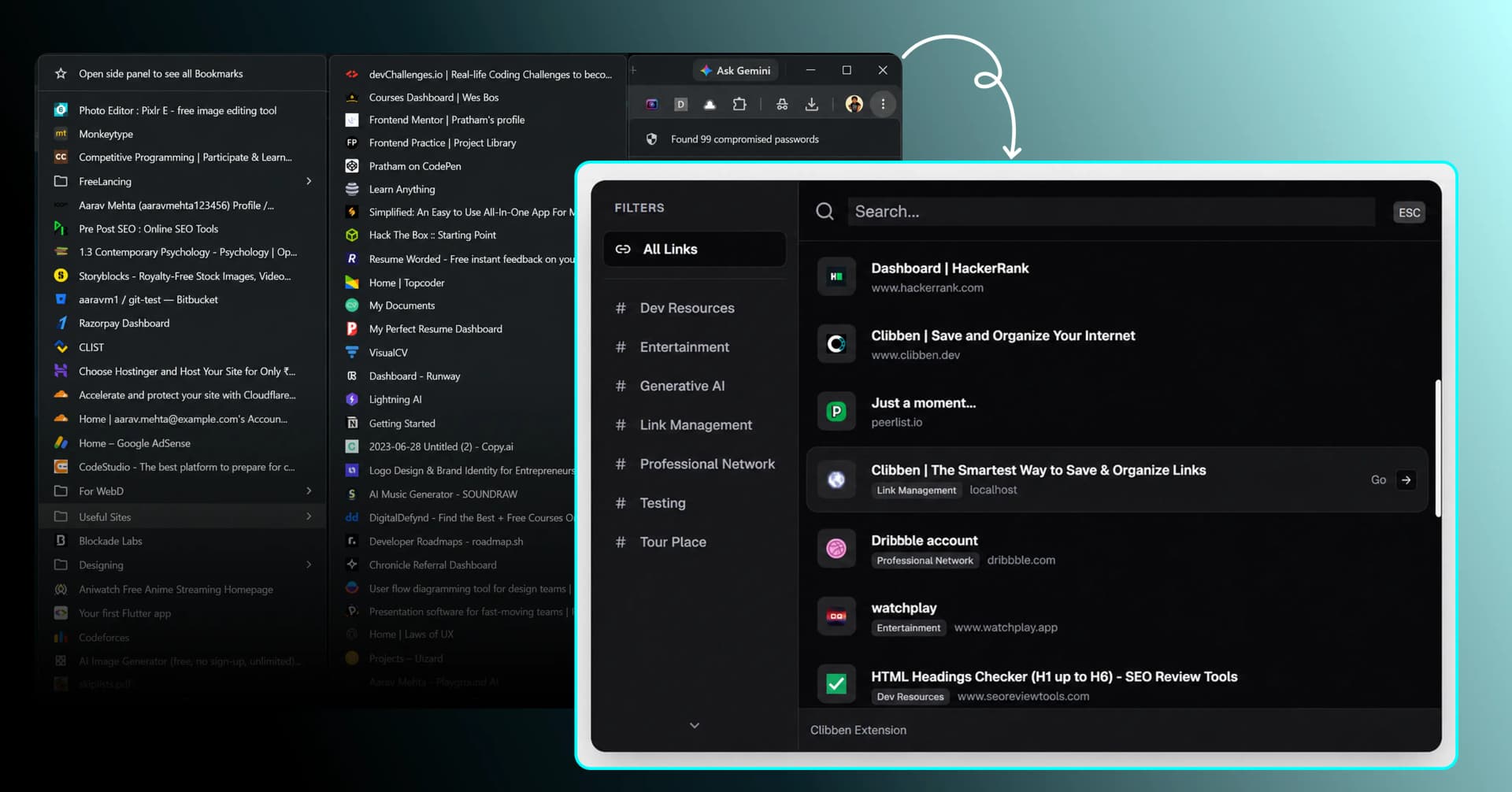
Stay Organized
Struggling through this massive list to look for a resource is tiring.
Clibben simplifies that for you by providing the search modal directly on top of your active tab.
This is why Clibben exists
The Chrome bookmark system has not meaningfully changed since it launched. You get a star icon, a folder picker, and a bookmark manager you have to open in a separate tab to search. That is it.
For 20 links, this is fine. For 200 links, you stop being able to find anything. For 500 links, the bookmark bar becomes noise, the folders become archaeology, and you start Googling things you know you already saved - because that is faster than digging through Chrome.
Clibben was built around one question: what if retrieving a saved link was as fast as saving it?
What Chrome bookmarks were never designed to do
Not flaws. Just the honest truth about what a browser feature is and isn't built for.
Search requires opening a new tab
To search your Chrome bookmarks, you press Ctrl+Shift+O (or Cmd+Option+B on Mac), wait for the bookmark manager to open as a new tab, type your search, find the link, click it, and navigate back. That is five to seven steps for something that should take one. Clibben puts search on the page you are already on - one hotkey, one action, done.
Organisation is entirely manual
Chrome saves a link wherever you tell it to go. If you do not pick a folder, it goes into "Other Bookmarks" - a graveyard. There is no suggestion, no categorisation, nothing automatic. Every single link requires a deliberate folder decision at the moment you save it, which is the exact moment you are least likely to care about filing.
Chrome-only. Not cross-browser.
Chrome syncs to Chrome via your Google account. That is it. If you use Firefox for one thing, Safari for another, or Edge at work, your bookmarks are fragmented across multiple browsers with no way to unify them natively. Clibben works across browsers from a single account - the extension brings everything together regardless of which browser you are in.
No smart search. Title-only.
Chrome's bookmark search looks at the page title and URL only. It does not know what the page is about, what topic it covers, or why you saved it. If you cannot remember the exact name of the article, the search returns nothing useful. Clibben understands context - semantic AI search (coming soon) lets you search by what the link was about, not just what it was called.
Sync has a hard limit
In 2023, Google introduced a hard cap on the number of bookmarks Chrome will sync across devices. Heavy users - researchers, developers, anyone who saves links seriously - have hit this ceiling and lost sync silently. Clibben has no such limit.
No collections, no collaboration
Chrome has folders. Clibben has collections - grouped, labelled, shareable, and soon available as team spaces. If you want to share a set of links with a colleague, Chrome has no mechanism for this. You copy-paste links one by one into Slack. Clibben lets you share an entire collection.
Chrome bookmarks vs Clibben
What each actually does
| Feature | Chrome Bookmarks | Clibben |
|---|---|---|
| Save a link | One click (star icon) | One hotkey or extension click |
| Search bookmarks | Opens separate tab, title/URL only | In-page overlay, instant, full context |
| Keyboard hotkey to search | Requires Ctrl+Shift+O then new tab | Custom hotkey, overlay on current page |
| Auto-categorisation | Manual folder selection only | AI reads the link and files it automatically |
| Collections / Groups | Folders only, no icons, no metadata | Named collections with visual organisation |
| Cross-browser support | Chrome only | Single account, multiple browsers |
| Sync across devices | Google account required, hard sync limit | Cloud-based, no artificial limits |
| Smart / semantic search | Not available | Coming soon (AI semantic search) |
| Import existing bookmarks | HTML export built in | Accepts Chrome HTML export |
| Team shared spaces | No sharing capability | Coming soon |
| Link sharing | Copy URL manually | Share entire collections |
| Duplicate detection | None | Planned |
| Works without switching tabs | Manager opens in new tab | Overlay stays on current page |
| Custom hotkeys | Fixed browser shortcuts only | Fully customisable |
| No Google account required | Sync requires Google sign-in | Independent account |
| Privacy - data owned by you | Google account, Google infrastructure | Your data, independent product |
| Free to use | Free (part of browser) | Free (paid features soon) |
*Chrome bookmarks are a browser feature - a utility built for convenience, not for power users. If you have under 50 links and never search them, Chrome is fine. This page is for everyone else.
Which one are you?
Chrome bookmarks work fine for you if:
- You save fewer than 50 links total
- You mostly use bookmarks for sites you visit every day (your bank, your email, a news site)
- You access bookmarks from the bookmarks bar, not by searching
- You use Chrome exclusively and are always signed into your Google account
- You have never thought "where did I save that?"
You have outgrown Chrome bookmarks if:
- You have more than 100 saved links and regularly can't find the one you need
- You do research, development, writing, or design work that involves saving lots of links in sessions
- You use more than one browser, even occasionally
- You have a folder called "To Sort", "Misc", "Unsorted", or just "Stuff"
- You have Googled something you know you already saved - because it was faster
- You bookmark things and never return to them because finding them is too much effort
What finding a saved link looks like
- 01Remember you saved a link
- 02Press Ctrl+Shift+O to open bookmark manager in a new tab
- 03Type a search term - hope you remember the page title
- 04Scan through results (only titles and URLs)
- 05Click the link - opens in the same new tab you used to search
- 06Navigate back to where you were
- 01Remember you saved a link
- 02Press your hotkey - overlay opens on your current page
- 03Type anything - a topic, a word from the article, a domain
- 04Click the result - opens in a new tab
Your Chrome bookmarks aren't lost. They're just not here yet.
Moving from Chrome to Clibben takes about 2 minutes and keeps every link you've saved.
Export from Chrome
In Chrome, open the bookmark manager (Ctrl+Shift+O on Windows / Cmd+Option+B on Mac). Click the three-dot menu in the top right of the bookmark manager → “Export bookmarks”. Chrome saves an HTML file to your computer.
Import into Clibben
In Clibben, go to Settings → Import → Upload the HTML file from Chrome. Clibben reads your folders, recreates them as collections, and imports every saved link. The whole structure comes with it.
Let Clibben re-organise
Once imported, Clibben's auto-categorisation will review your links and can suggest better groupings - or you can keep the folder structure exactly as it was. Either way, everything is now searchable from your browser with a single hotkey.
Questions people ask before switching
Will I lose my Chrome bookmarks if I switch to Clibben?
No. Chrome keeps its own bookmarks independently. You export a copy and import it into Clibben - Chrome's bookmarks are untouched. You can run both in parallel for as long as you want.
Can I still use Chrome while using Clibben?
Yes. The Clibben extension installs inside Chrome and works alongside your existing browser. You do not need to change browsers or stop using Chrome.
Does Clibben replace the browser extension system?
Clibben is a layer on top of your browser, not a replacement for it. Think of it as a smarter, searchable home for your saved links - it does not touch your other extensions, settings, or Chrome behaviour.
What if I want to go back to just Chrome bookmarks?
Export your Clibben bookmarks at any time (Settings → Export → HTML). That file can be imported straight back into Chrome. You are never locked in.
Is Clibben free?
Yes. The core Clibben experience - save links, auto-categorise, search via overlay, create collections, import from Chrome - is free. Paid features like team spaces and AI semantic search are coming soon.
Your bookmarks should work for you
Free to use. Import your Chrome bookmarks in 2 minutes. No credit card.